
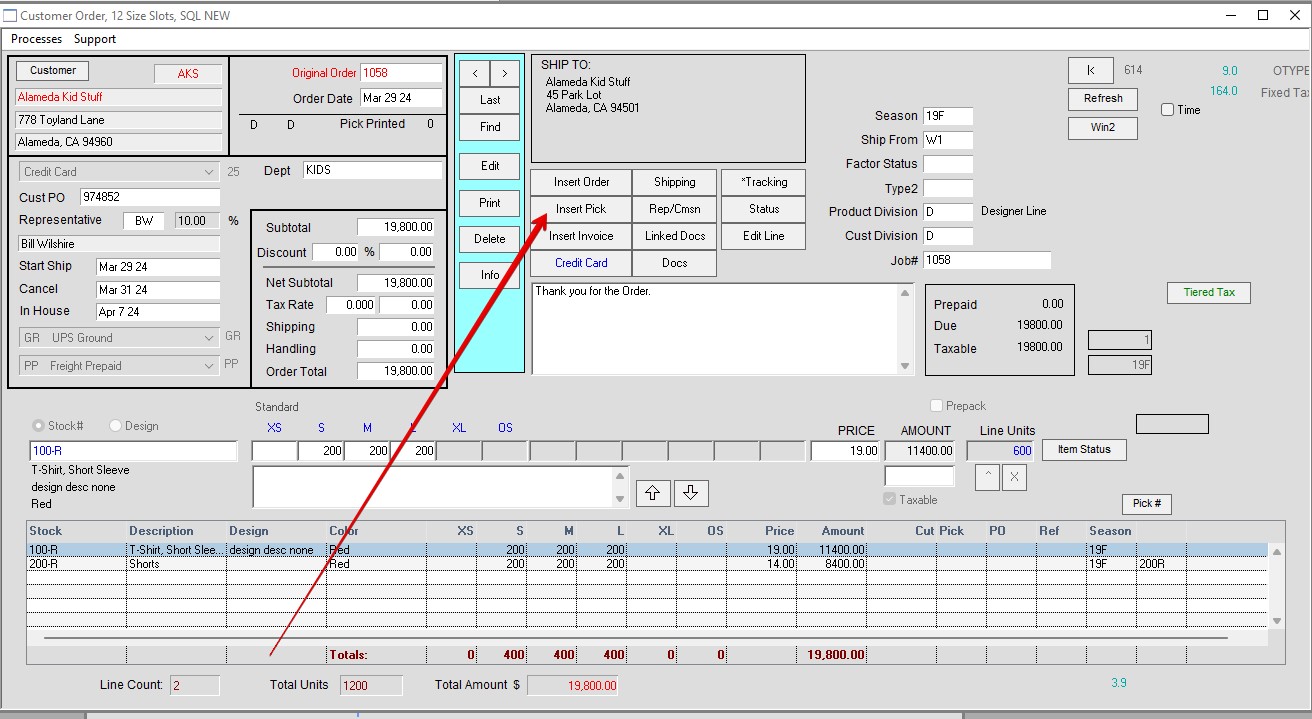
Go to an existing pick ticket or find an order which you want to pick. See Red Arrow if from Order window. Click on Insert Pick
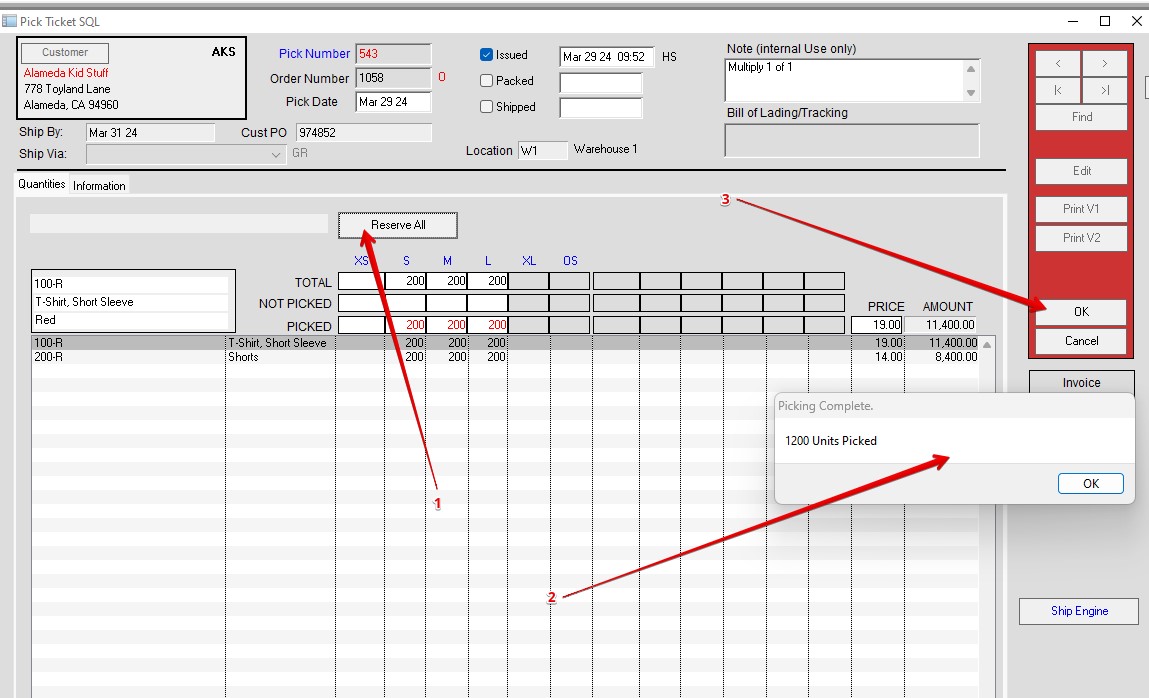
Perfect Fit automatically inserts the order number which was opened and today’s date as a default. Change if needed. Reserve items and click OK. (See Pick Ticket in the User Guide for more information on how to enter a Pick Ticket.)
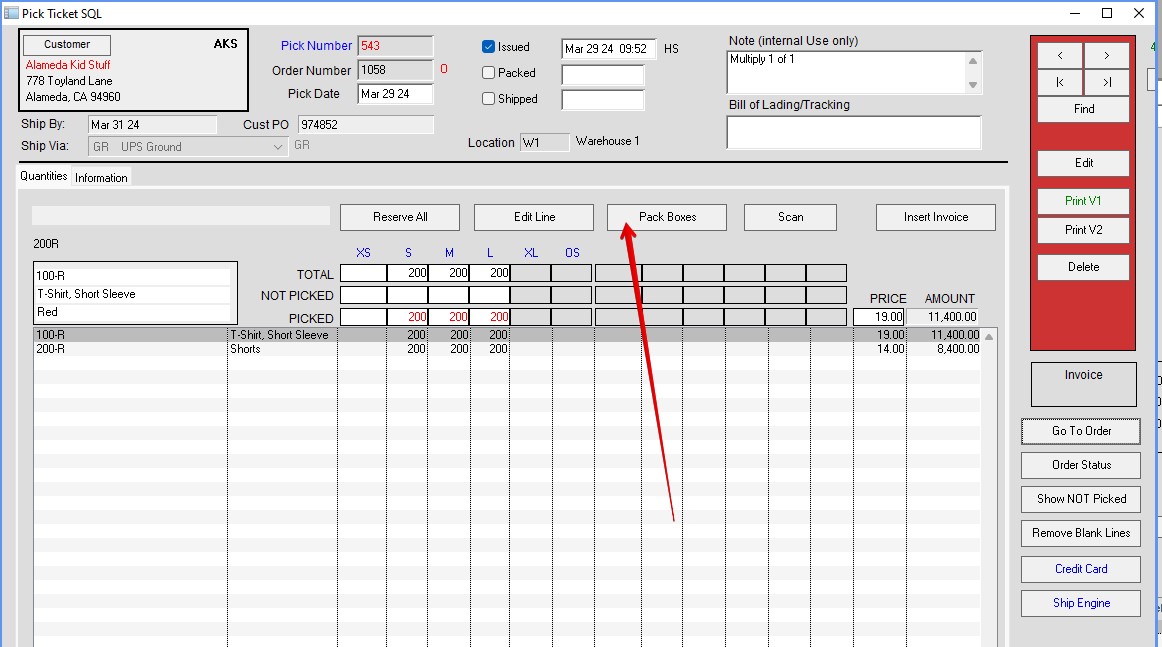
Select the Pack Boxes button.
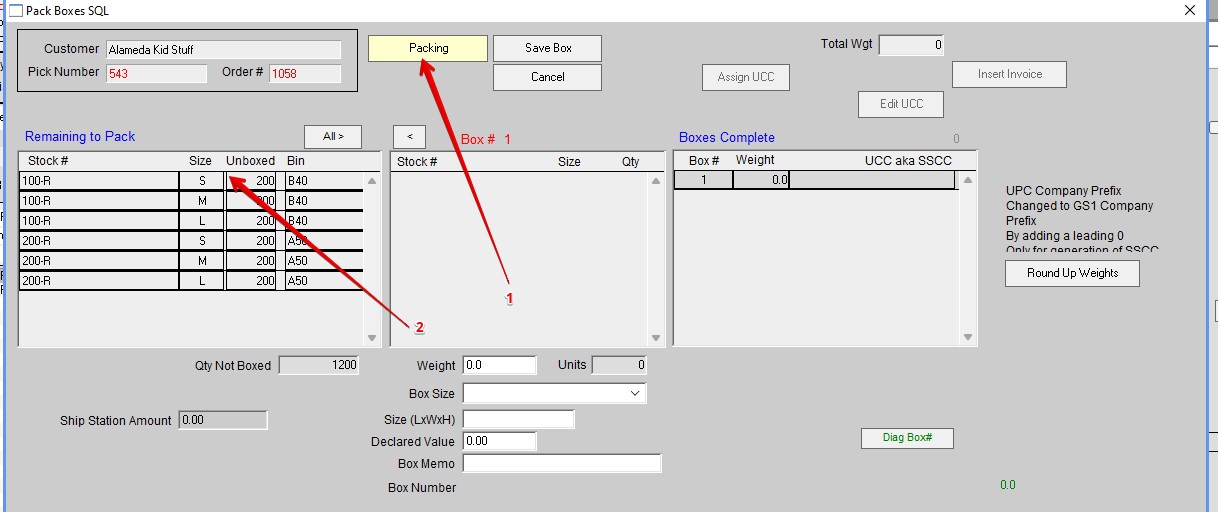
This will open the Pack Boxes window. Select Pack New Box. The first box will be highlighted. Click on Packing
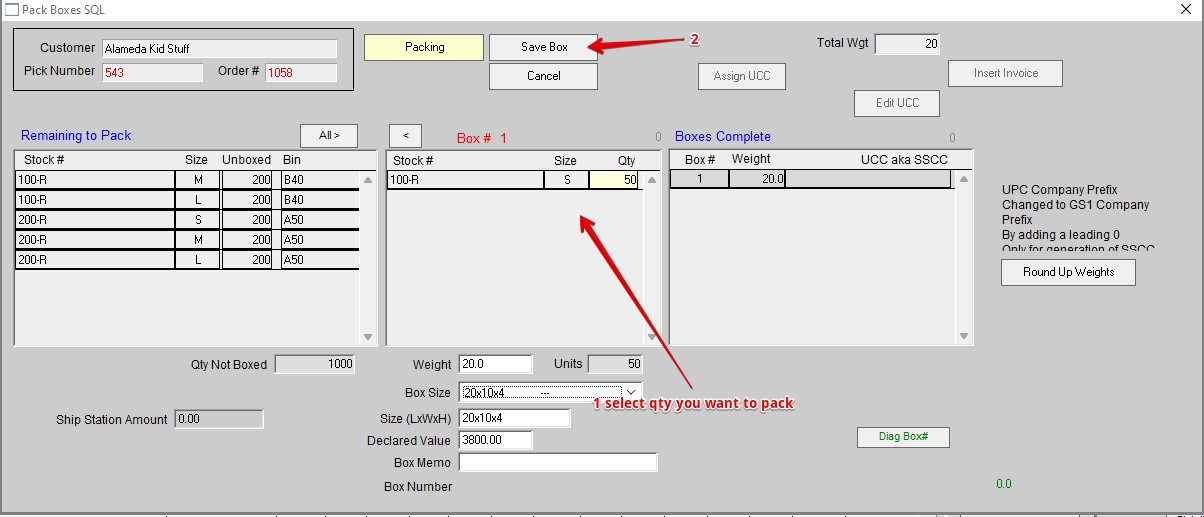
Boxes can be identified with numbers or alphanumeric characters. Styles of a single size can be distributed over many boxes. Double-click the items you want to put in this box from the box on the far left. Adjust the quantity if needed by using the tab button. Tab and enter the weight of the box and tab again to enter any memos. If you want to remove the items from the box, highlight the items, and click Remove. When that box is done, click Save Box. You can edit the quantity, weight, and memo after the box is done, but you must use the Delete button to remove the line items (Highlight line to remove).
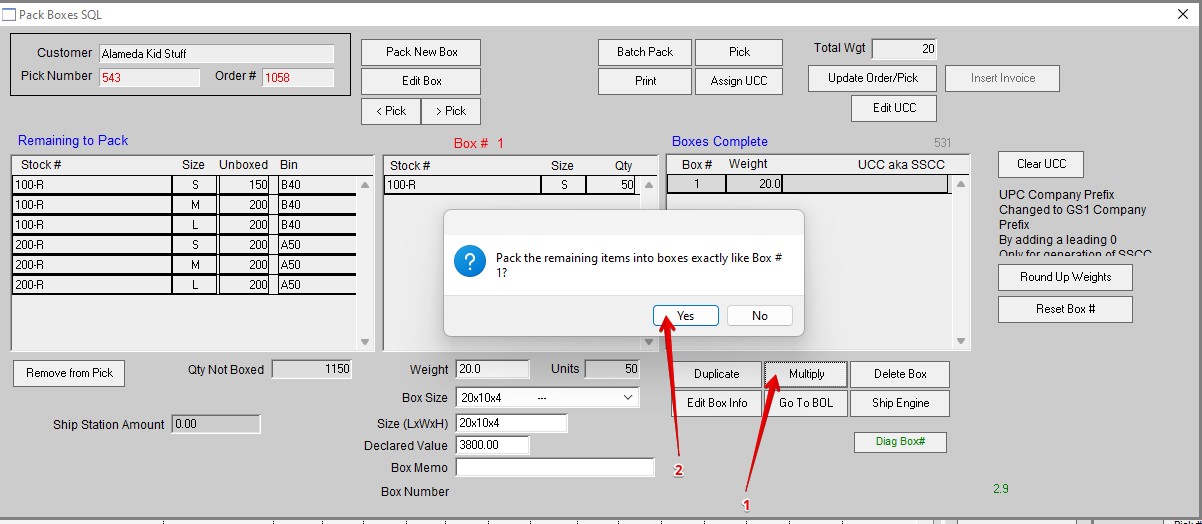
Choosing the Multiply button packs the remaining items like the last box packed. (Note: There are many ways to pack a box. This guide uses the multiply feature).
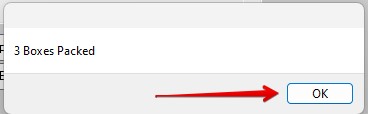
Click OK and repeat for remain items to pack. You can print the Packing list if needed.
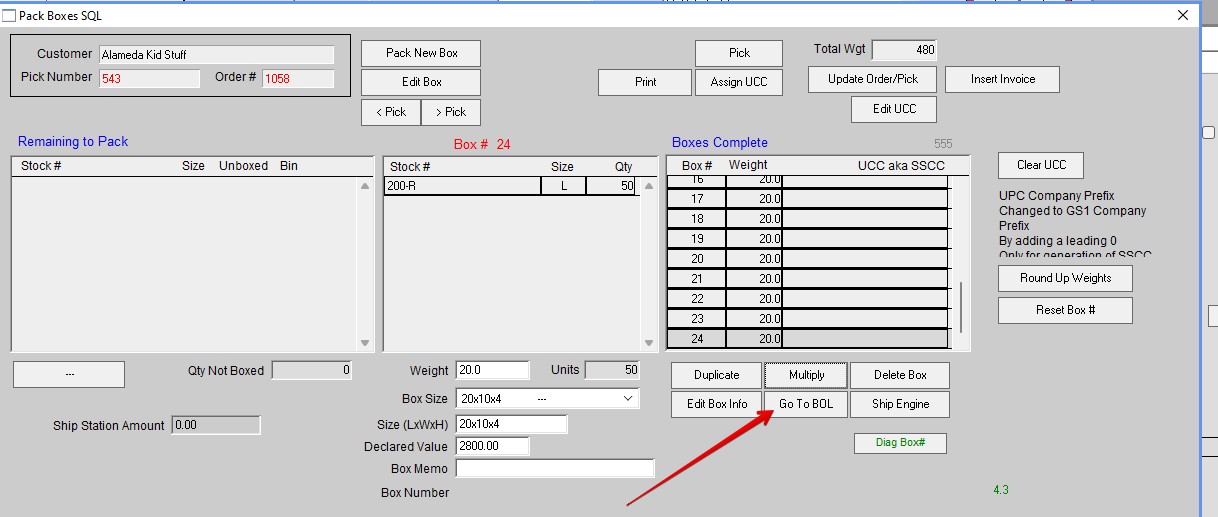
To use the BOL feature, click on Go To BOL (See Red Arrow).
Click Add Pick. If there are incorrect Pick Numbers click Remove Pick.

Select the Picks you want. Click on Add Selected Picks to BOL.

Edit the areas of the BOL as needed.

Click Print. Chose the type of BOL you want. Standard BOL is VICS. Click Print.

Screen shot of Finished BOL

Added by HS 3/29/24