
Method 1, Customer Selection Window
To send Statements by batch, go to Invoices > Reports > Receivables > Statements/Interest.
The window opens showing all customers with a balance due in the left list. To reload the list with customers only with older invoices, click the button at the top, “Reload Past xx Days Only”.
See the Customer Terms Definition (Maintenance > User Lists > Customer Group > Customer/Vendor Terms)
Each Terms Code has a checkbox to Send Statements.
If not checked then Statements will not show in this window.
Note: See Preference Invoice #25 (Maintenance > Preferences > Invoices) to change the cut off number of days.
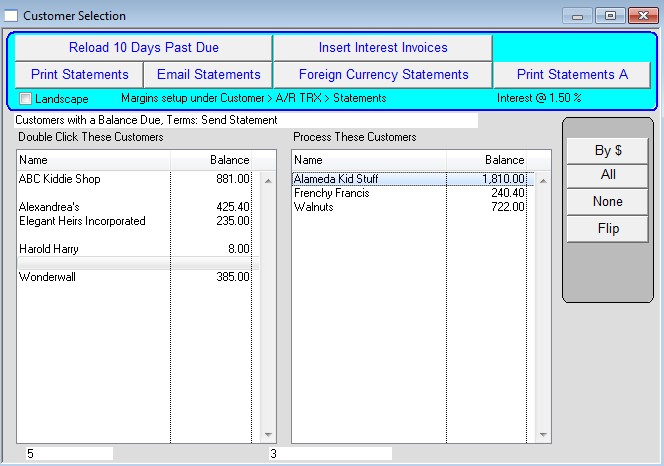
Double click the names in the left list to move them to the right list. Names in the Right list will will be processed (print statement, or insert interest invoice). Use the shortcut “None”, “All”, or “Flip” buttons to speed data entry.
To Print the Statement, click the Print Statements button, after the customer selection has been made.
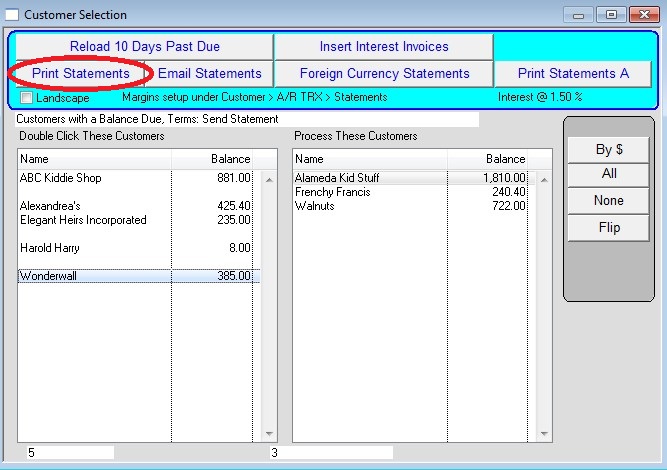
You will receive a prompt asking if you want to enter an automatic note for each customer. If you click yes the note will be recorded
in the Customer Window > Notes
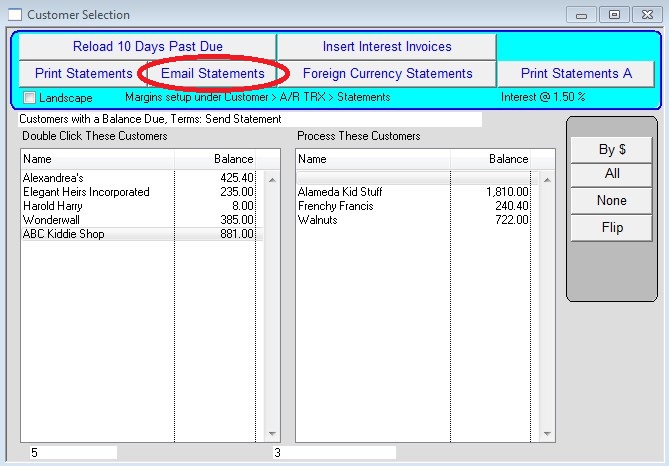
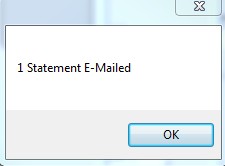
Alternatively, you can automatically email the statements to the customers be pressing the Email Statements button instead of Print Statements.
In order for this function to work you need to have the Contact Manager module installed, and contacts set up for the customer. See here for additional Contact Manager info.
Notes: To send a statement to a single customer, go to the customer window, click A/R Trx, and click the Statement button. You can enter a note to print on the statement.
See Maintenance > Defaults to enter a memo to be printed at the bottom of every statement.
Revised 3/18/2015 – SV
Revised 6-18-2026 – AG