
3001: Pick is Linked to Invoice Number
Scenario 1:
When an invoice is inserted from a Pick Ticket, the Pick is marked with a “1” to lock it during the invoicing process.
The “1” may be visible on the Pick Window, showing in the Invoice box under the buttons.
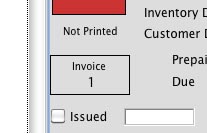
Warning: If someone else is indeed invoicing the Pick Ticket, do not follow the steps below and let them complete the process and post the invoice.
Check to see if anyone else is in the process of invoicing the pick.
If not, which is the common case, you can clear the lock by clicking on the “1” on the Pick window and pressing Yes when prompted to free up the Pick Ticket.
Scenario 2:
The Pick Ticket has been invoiced, the invoice has been posted, and the Pick was not deleted as it is supposed to be.
The Invoice box on the Pick window looks like this:

Click on the number in the box, and if there is an invoice with that number it will open the invoice window. Confirm the invoice is posted.
Delete the Pick Ticket as follows:
On the Pick window, click the Prog Pick button to open the Programmers window.
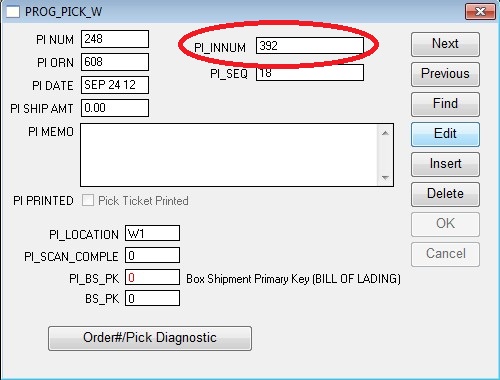
Click Edit, and backspace over the number in the field PI_INNUM
(In this case if the pictures were accurate the 392 you see would match the 7591 on the Pick window)
Click OK to save the change.
Close the PROG window.
On the main Pick window click Delete.
Follow the prompt to go to the Order window.
If the order has been shipped complete, Delete the order with NO TRACE
If the order has backordered items on it to ship later, Edit the order as usual to remove the items that have already been shipped.
These fixes are going to generate self-correcting diagnostic errors.
Plan on running the diagnostic report twice after making this fix.
To avoid running the diagnostics twice, you could Recalculate All Fields on the Inventory window for each item affected by the Pick. (Recommended).
Revised 6/27/13 AG