
Installation of the PDF Device
Windows
1. Unzip the xcomp file that we sent you.
pdfdevice_330r_win.zip
Or you can copy the pdfdevice.dll from another computer that already has it. See step 3 for the path.
If you have a choice of files, use the NON-UNICODE version.
2. Inside the xcomp folder, copy the file pdfdevice.dll
3. Open the Omnis xcomp folder:
For Omnis 8.1.7 the path is
32-bit operating system:
C:Program FilesOmnis SoftwareOS8.1.7RTxcomp
64-bit operating system:
C:Program Files (x86)Omnis SoftwareOS8.1.7RTxcomp
4. Paste the pdfdevice.dll file into the xcomp folder
5. Delete the omnispdf.dll file in the xcomp folder.
Macintosh OSX
1. Unzip the xcomp file that we sent you.
pdfdevice_330r_mac.zip (or some other version number)
If you have a choice of files, use the NON-UNICODE version.
2. Inside the xcomp folder, copy the file pdfdevice.u_xcomp to the xcomp folder described in Step 3
Or you can copy the pdfdevice.u_xcomp from another computer that already has it. See step 3 for the path.
3. Open the Omnis xcomp folder:
For Omnis 8.1.7 the path is
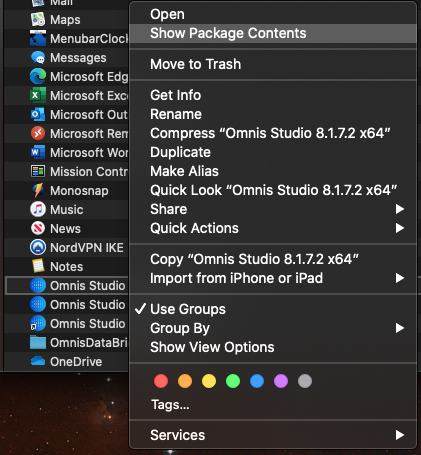
Applications
Control-Click or right Click on Omnis Studio and select Show Package Contents
Open folders in this order:
Contents > MacOS > xcomp
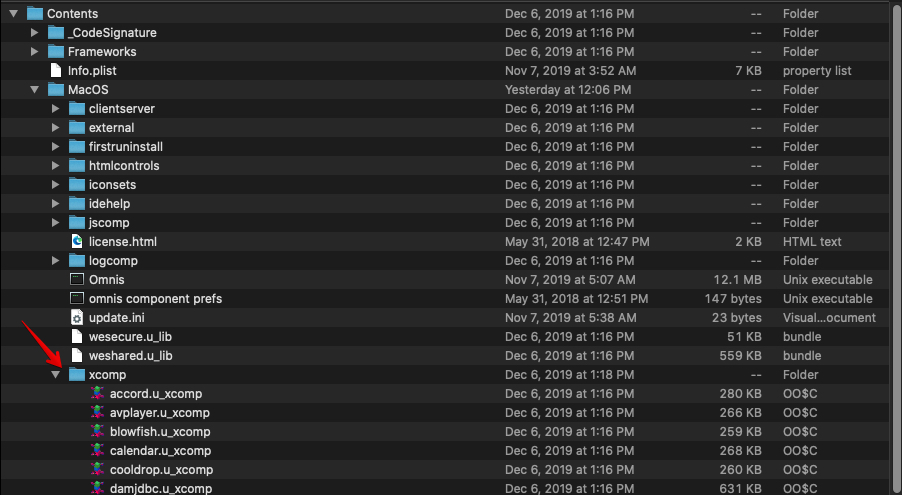
4. Copy/Paste the pdfdevice.u_xcomp from step 3 into the xcomp folder.
5. Delete omnispdf.u_xcomp in the xcomp folder.
Last Revised: 10/23/20- SH