
3060: Order Item with Reserved Quantity and Invalid Pick
This indicates the order item thinks a quantity has been picked when in fact there is no pick ticket for that item.
Find the Order Number as shown on the diagnostics. In this example, 568.
Delete any Pick Tickets that are associated with this order.
If you are using the order window that shows line items on the main window, click the “Old Order Window” button.
Click the Page button to open the detail window.
Click the Prog OITEMS button, in the upper right corner of the window.
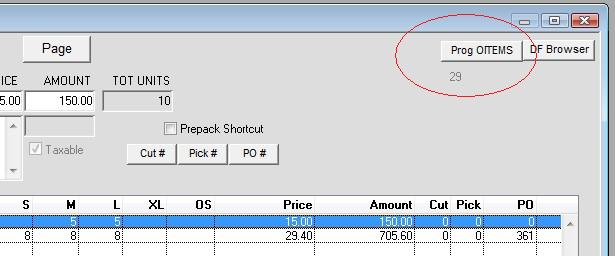
The Order Items Programmers Window will open:
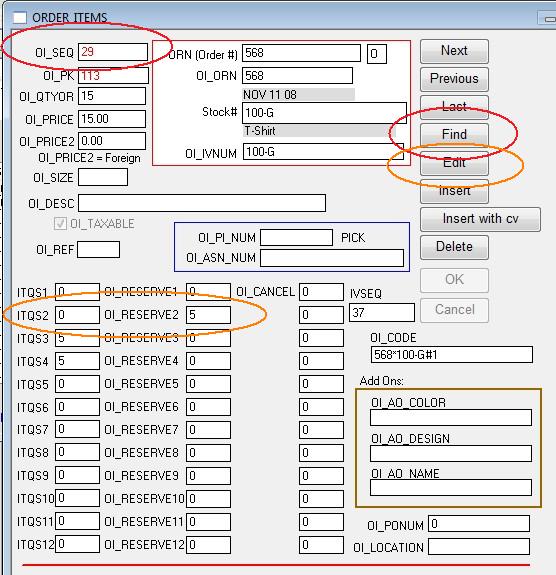
FIND on the OI_SEQ field as shown in the Diagnostics, in this case 29.
This is the unique identifier Order Item Sequence number that is assigned by the database.
The fields OI_RESERVE1 through OI_RESERVE12 store the quantity of items that have been picked but not shipped for that order.
Here you can see that OI_RESERVE2 is showing 5 units.
If there are no Pick Tickets all OI_RESERVES should be 0.
The fields ITQS1 through ITQS12 store the quantity of items that have NOT been picked for that order.
Click EDIT, and enter zeros in the OI_RESERVED fields.
Most likely, but you should check the original order, the ITQS field should have the number that was in the OI_RESERVE field.
Click OK to save your changes.
The above steps fix the core data. 2 more things should be done to clear up possible diagnostics errors.
1. Open the Order window, click EDIT, click PAGE, click PAGE again, click OK.
This resets the Order amount total.
2. Open the Order Detail window, double click the line that was fixed to open the Inventory window.
Use the window Menu: Recalculate > Orders and Picks.
This will reset the inventory on order and picked quantities.