
To transfer a single item between locations pull the item up in the Stylemaster and press the Locations button.
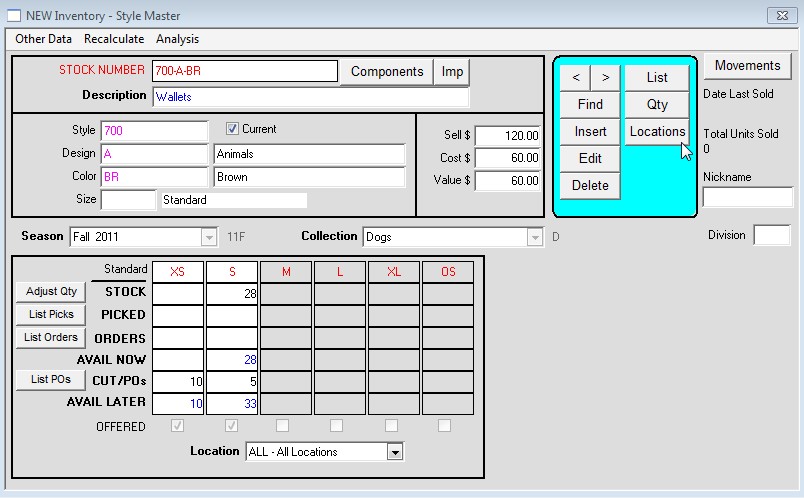
In the Inventory – Locations Quantities window press the Move button. Then transfer the stock by reducing the amount in one location and increasing
the amount in another location. *See bottom for explanation.
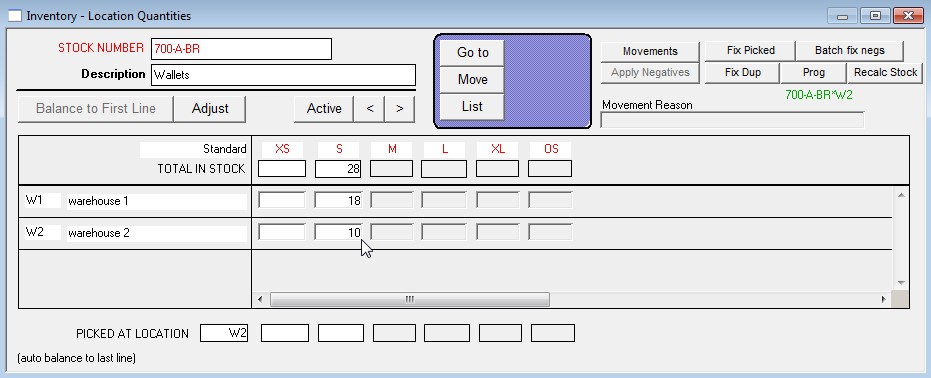
In the above screenshots we had a quantity of 28 in the Warehouse 1 location and 0 in Warehouse 2. We transferred 10 units between the
locations by decreasing the quantity at Warehouse 1 by 10 units, and increasing the unit’s in Warehouse 2 by 10 units.
Alternatively, instead of manually increasing and decreasing the quantities you can just edit the largest quantity and the difference will autobalance
to the other location. Another option is to edit the quantities in the second location or below then press the Balance to First Line and the difference
will be added to the location on the first line.