
2008 and 2009: INVOICE ITEMS DIAGNOSIS
Diagnostic Error: INVOICE ITEMS DIAGNOSIS
Invoice #xxxx, Delta = yyyy
Above Invoice Items NOT in balance with Invoice Subtotals.
This error also shows on a printed invoice, with the message WARNING: Error – Invoice Subtotal.
This indicates that the total of the line items on the Invoice does not agree with the Invoice Subtotal that is stored in the Invoice Header file. Usually it indicates a missing invoice line item.

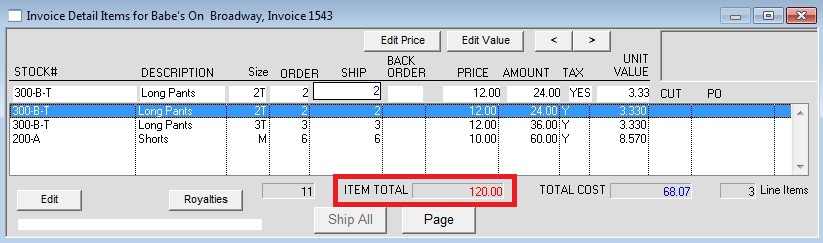
The Total of the Invoice items should agree with the Subtotal amount of the invoice. If they do not agree then an adjustment will need to be made to either the quantity of one of the items or a new item will need to be Inserted (or unlikely Deleted).
If you KNOW that the items are correct, then the Invoice Header will need editing, and that will cause a ripple affect that will required adjusting other fields on the Invoice Header, AR Transactions, and the Customer Balance. This is rare.
A missing invoice item can be inserted using the Programmer’s window.
(Obsolete: Go to Maintenance > Programmers > PROG > Windows > Invoice Items.)
A quicker way to get to the Prog window is to click the button on the Invoice Detail window that is in the far upper right corner, Prog Items.
With a line highlighted on the invoice detail window, this will open the item record that can serve as a template for the new insert with Current Values (CV).

(Obsolete: Click Find then enter the invoice number in the II_INNUM field. Then use the arrow keys to scroll through the items on that invoice.)
Click InsertCV
You are in INSERT mode. You are not Editing the line that shows on the window.
Enter the Quantities, Price, Size and Slot Number, and Cost.
Enter the Inventory Number (Stock #) in BOTH fields.
Leave the other fields alone. Especially do not change the Invoice number.
Click OK to save your changes.
The total of the Invoice items should match the Subtotal amount on the invoice main window.
NOTE: If the invoice does not have any line items, you will not be able to find a “good” item. In this case, click Insert and enter the required fields:
INNUM
II_INNUM
IVNUM
II_IVNUM
IIQORD
IIQ1SHP
IIQBOR
IIPRICE
IISIZE
IISIZE_SLOT
II_COST
other fields are optional
Revised 04/27/18, AG