

The Perfect Fit Library file. This file controls the user interface, data processing, and contains definitions for menus, reports, and windows.
STEP 1)
Download the Perfect Fit Library file (requires user name/password). You may see several library files on the download page. The numbers in the name of the library file denote the date released in yy/mm/dd format. Download the latest Library File that pertains to the Omnis version you are using (4.2 vs 4.3) and save to your desktop. Do NOT “Run” from the web page.
http://perfectfit.net/TECH/pf7library/index.html
Note: This guide assumes you already have the PF Opener File (File name: PERFECT_FIT) installed. If you do not, follow the instructions on this page then return back to this wiki entry to finish installing the Perfect Fit Library file.
STEP 2)
Unzip the library file.
Different computers may have different software for unzipping files.
You can usually double click the Zipped file, and in the window that opens, right click the PF7 file, and select COPY.
STEP 3)
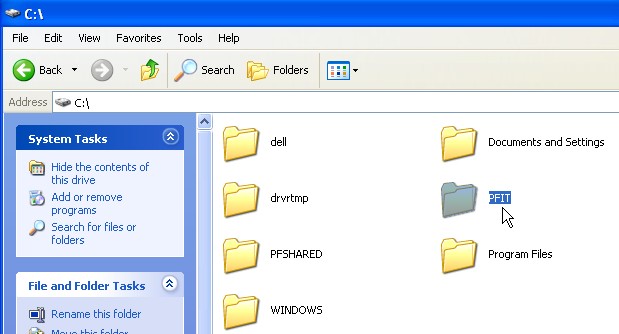
Navigate to the C Drive and then to your PFIT folder (Create the PFIT folder if it does not already exist).
STEP 4)
Go into the PFIT folder, right click on an empty area and select “Paste”.
Then repeat steps 2 – 4 with the PF Opener file.
STEP 5)
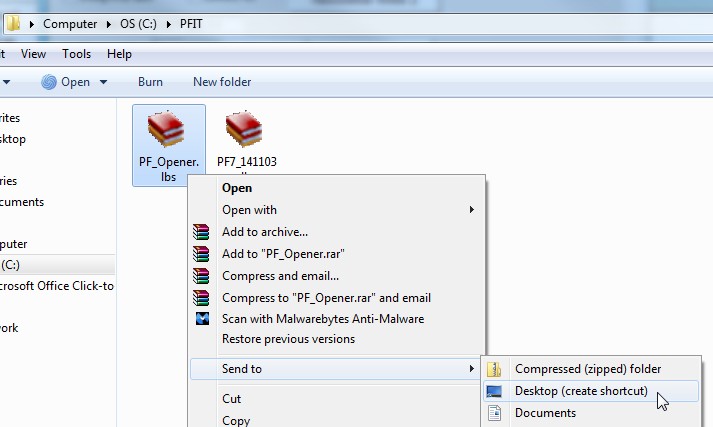
Right click on the Perfect Fit Opener file and select “Send To” then select “Desktop (create shortcut)”. Note that your version of Windows may use a different naming convention but the shortcut procedure will be similar.
Close the PFIT folder and return to your desktop. You will see the PF Opener shortcut on the desktop.
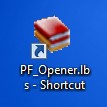
You are now finished with the installation of the library and opener file.
Revised 11/7/2014 – SV