
There should not be any issues installing the Omnis Studio ODBC
Driver on a Windows 64Bit Operating System.
What you will have problems with is trying to find the driver
using the standard 64bit ODBC Driver Administration tool that is
provided by Windows.
You will need to run the 32Bit Administration tool, which (like
many other 32Bit applications tools) can be found in the
/Windows/SysWOW64/ODBCAD32.exe
%WINDIR%\SysWOW64\ODBCAD32.exe.
Note that the ODBC Driver is “Read Only”. It can not be used to update the PF database.
Please contact us for the Driver.
After installation of the ODBC driver, you must create a data source (DSN).
DSN Creation:
Note: Due to various operating systems and settings, the screens/options may vary from the examples below. Even so, the directions below should be sufficient to guide you through the process. If you’re still unsure what to do, please contact UPS and they will dispatch a rep to set it up for you.
Click the Windows button in your task bar then type “ODBC” in the search field (your search results will differ though you should see an ODBC option).
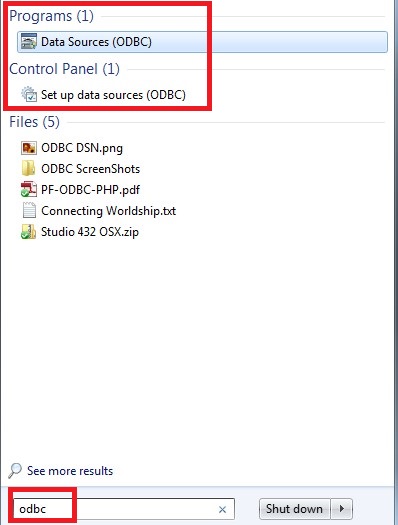
Open the “Data Sources (ODBC)” window.
Select the System DNS Tab. Then click Add. Select the Omnis ODBC Driver.

If you want to use the ODBC with Worldship you will need to log into Worldship and create an Import map.
After installing the ODBC Driver:
Windows 7, the ODBC Data Source Administrator will look similar to this:
Notice the Drivers tab is selected.

DSN = Database Source Name