
This wiki entry will show you how to set up support for Multiple Factors, assigned by customer.
Insert Factor as a Vendor via Menus > Vendors
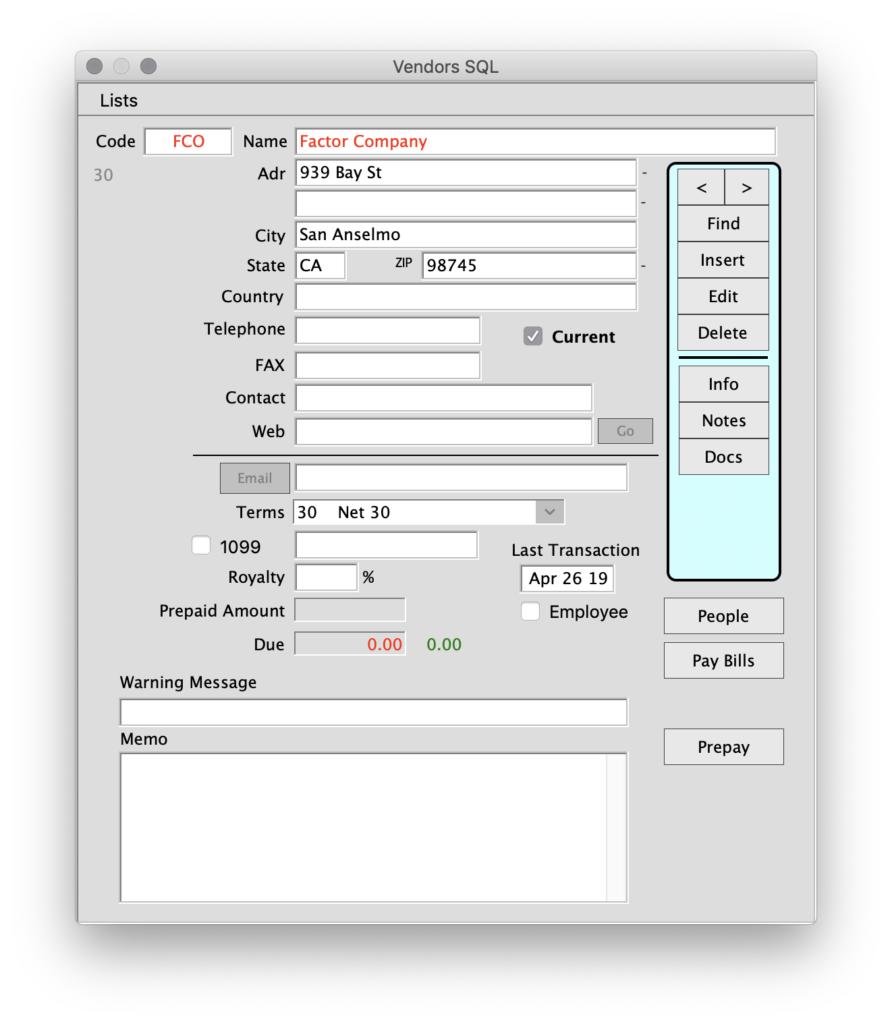
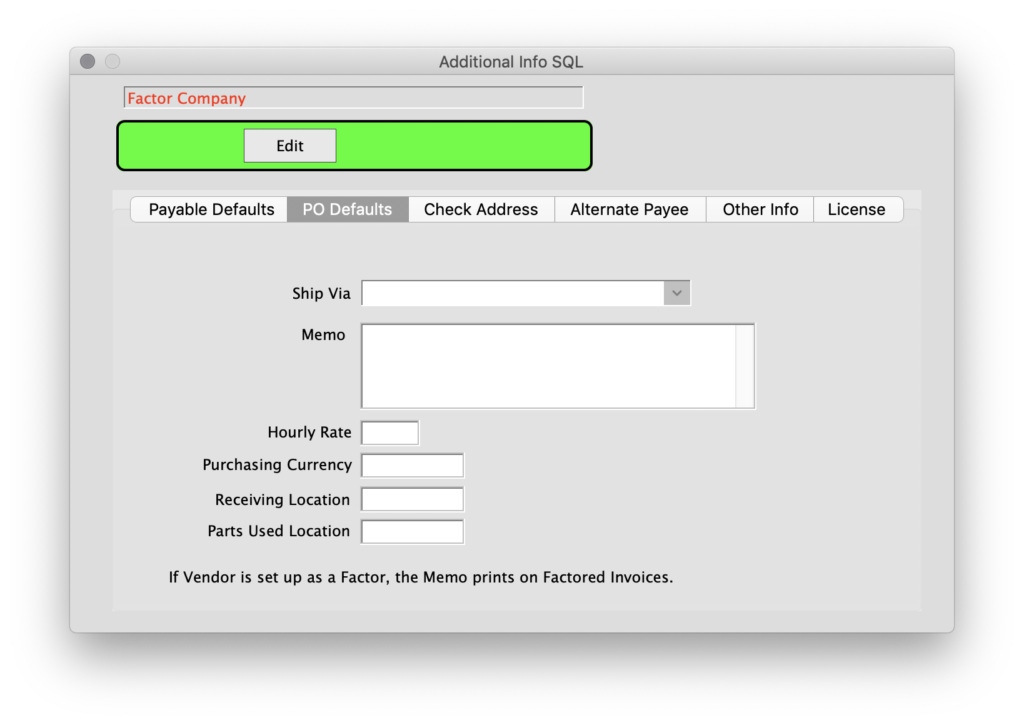
Once the Factor has been inserted click the Info button. Navigate to the PO Defaults and Enter the message to appear on the invoice in the Memo field. At the bottom of the vendor window, enter an F in the Vendor Type Code field
(F is for Factor).
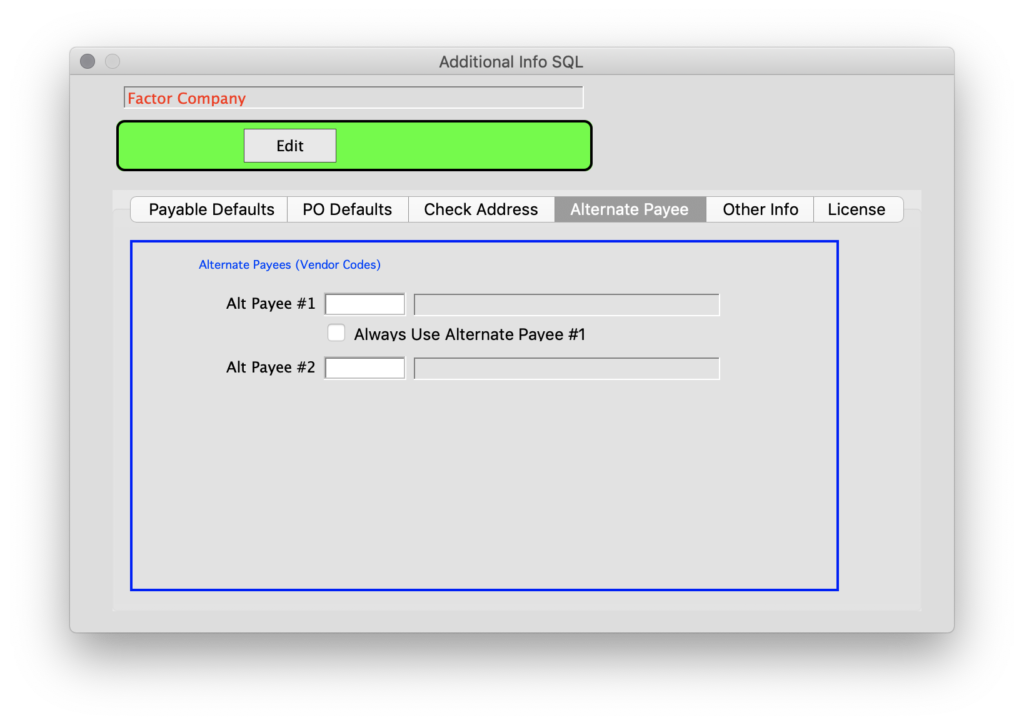
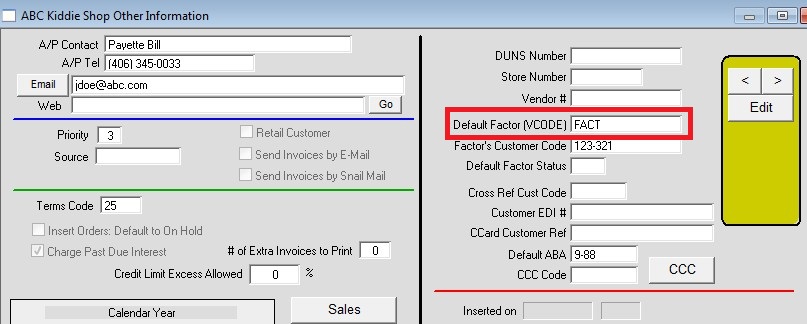
Now, go to Menus > Customers and click the Info button
Enter the Factor’s Vendor Code in the Default Factor (VCODE) field, above the red line.
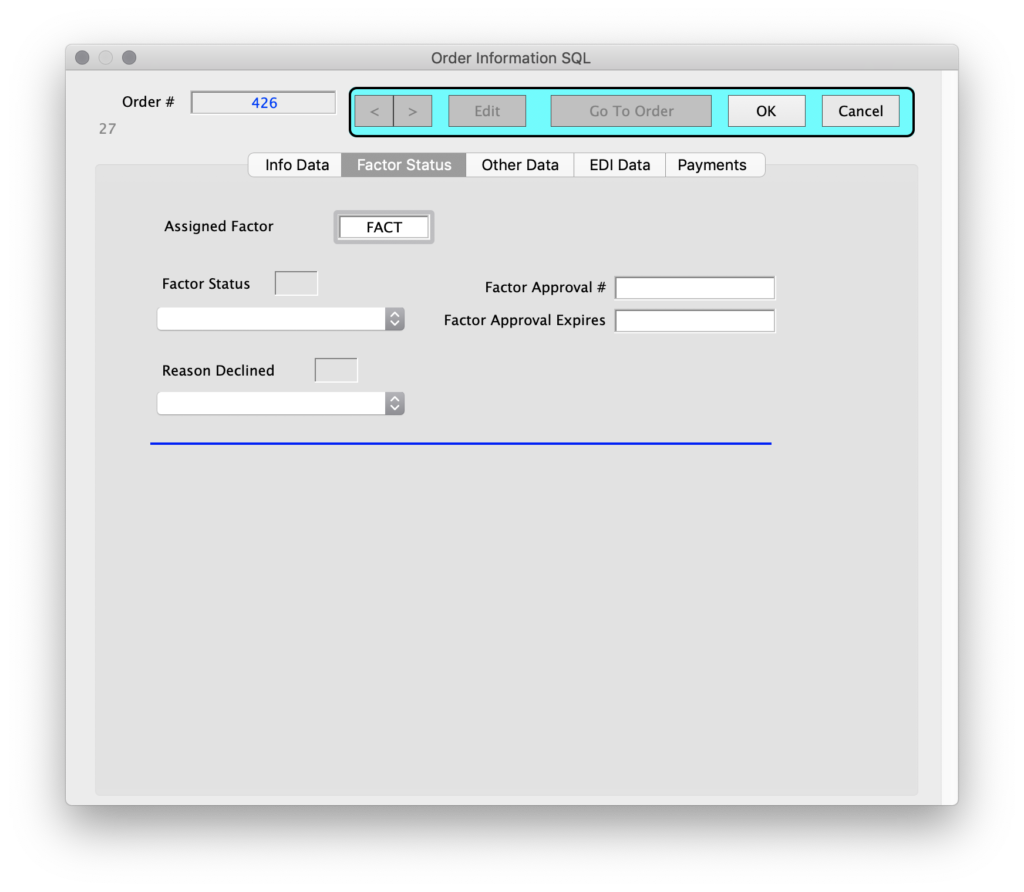
For reference, after you insert a new order for this customer click the Info button.
Below the Blue line, see the field Assigned Factor (VCODE)
This comes from the customer, but can be edited.
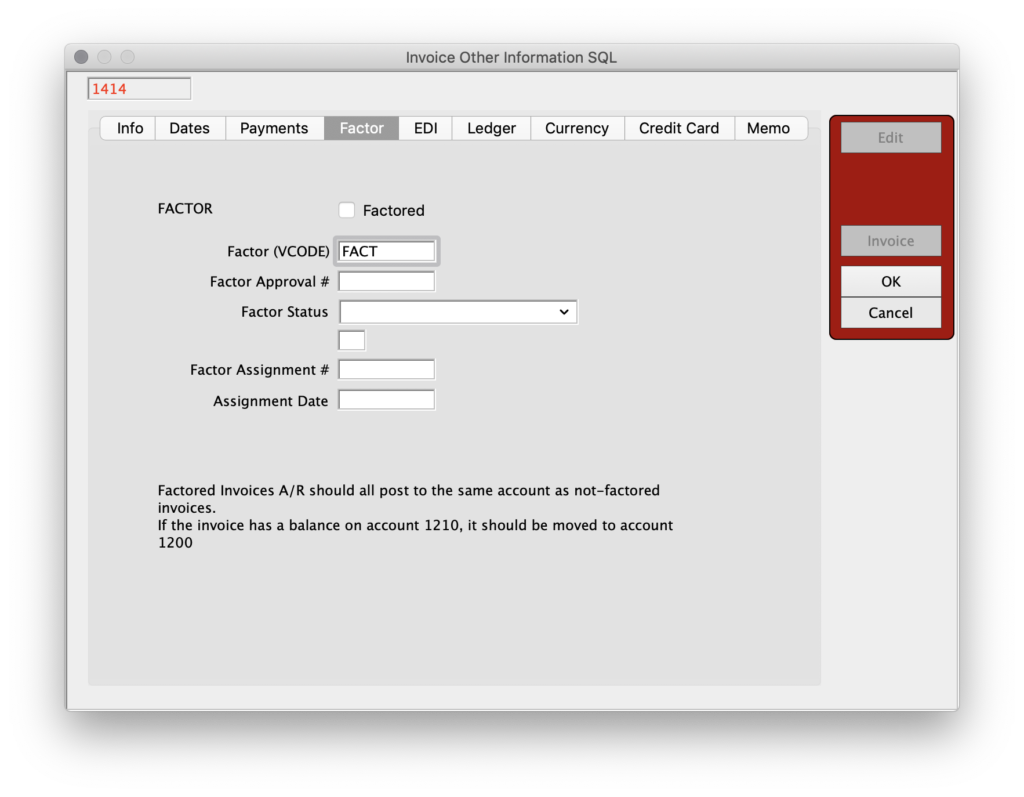
Menus > Invoices > Other Info window
Near the top of the window, see the field Factor (VCODE)
This comes from the Order, but can be edited.
Note:
Invoice > Print is set up to respond to the VCODE field.
Invoice > Print A is set up to respond to the VCODE field.
Reviewed 09-17-2026 by AG