
This article assumes you’re using a Gmail account and have set up the email account within Perfect Fit.
This following example uses Gmail and the free version of the SMTP2GO service
Other SMTP services can be used, which will be addressed at the end of this article.
Each service offers different pricing and features. You will need to research each to decide the best solution for your business.
We do not endorse SMTP2GO, or any other SMTP service. This example is for demonstration purposes only.
Setup
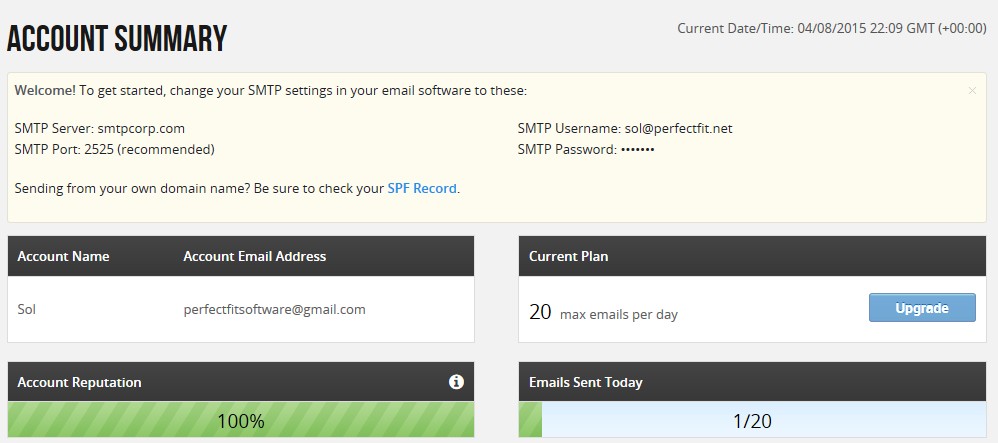
When you sign up for the SMTP2GO service and log into your account you will see this:
In Perfect Fit open the Email Setup window by going to:
Menus > Maintenance
Utilities > Email Setup
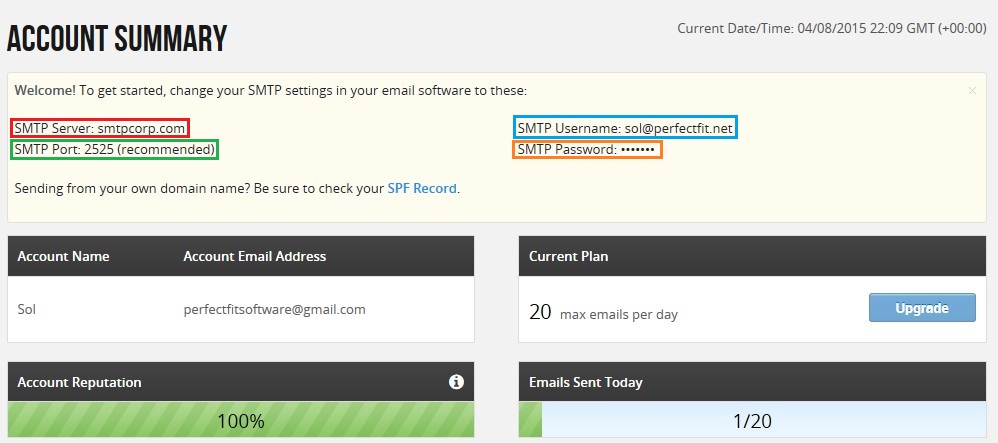
Copy the SMTP info, port, Username, and Password from SMTP2GO and paste into the corresponding fields in Perfect Fit.
See the colored boxes in screenshots below:
SMTP2GO
Perfect Fit
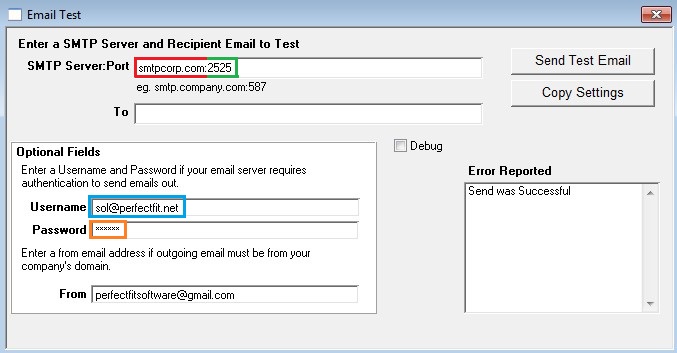
Click the Send Test Email button.
If you entered the settings correctly you will receive a “Send Was Successful” message.
Click the Copy Settings button and the settings will be saved within Perfect Fit.
You will now be able to send emails through Perfect Fit.
SMTP services
Each service offers different pricing and features. You will need to research each to decide the best solution for your business.
We do not endorse SMTP2GO or any other SMTP service.
SMTP2GO
AuthSMTP
SMTP
TurboSMTP
Created 4/8/2015 – SV