
7214: Trans Diagnosis – Date Is Out of Balance
Note: This error should be fixed BEFORE any other errors.
The total Debit amount and the total Credit amount must always be equal on a single post date.
The cause of the Date Out of Balance error is due to one of the following reasons and the fix is dependent upon the error.
A) Reason for error: Missing DB or CR transaction. Solution: A new transaction will need to be inserted.
B) Reason for error: Duplicate DR or CR entries. Solution: A transaction will need to be deleted.
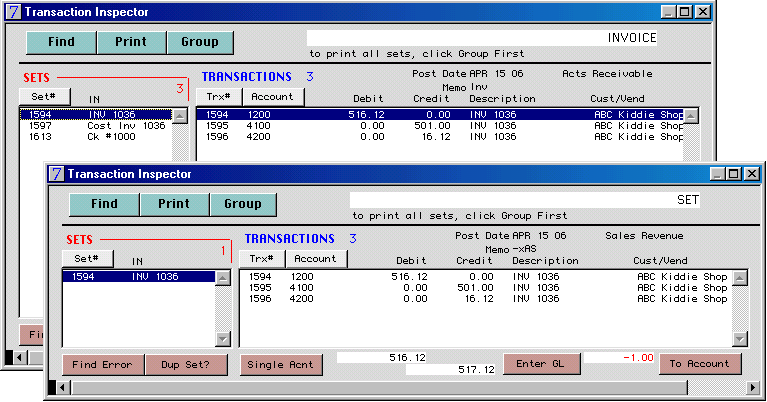
C) Reason for error: The totals of both sides are not equal i.e. DR amount is 516.12 and CR amount is 517.12. Solution: A transaction will need to be edited.
This screenshot example shows the scenario described in C; the debit amount is 516.12 and the credit amount is 517.12.
To investigate and fix:
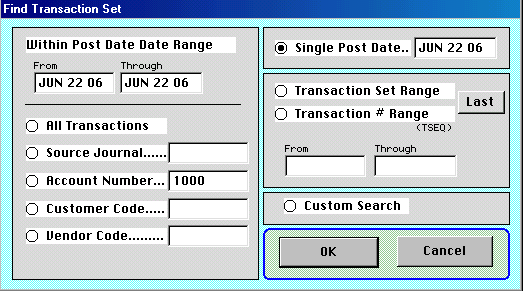
1) Go to Menus > Ledger > Ledger > Transaction Inspector. Click FIND. Select Single Post Date. Enter the date that is out of balance as referenced in the diagnostic error. Click OK.
2) In the Transaction Inspector window click the FIND ERROR button. The transaction set that is out of balance will be highlighted. By looking at this transaction set you will
be able to determine which of the fixes are needed, as per scenarios A, B, or C described earlier.
If you need to insert a transaction: double-click one of the transactions, which will open the Transaction Details window, then click Prog.
You will see the PROG_FTR window. Make sure you see the same transaction set number at the top of this window as was seen for the out of balance set.
Click Insert. The window will populate with duplicate data so you will not need to enter everything manually. Enter the missing amount in the correct DR or CR field, and delete the data out of the other DR or CR field. Enter a new GL# then Click OK.
If you need to delete a transaction: double-click the transaction you want to delete, which will open the Transaction Details window, then click Prog.
You will see the PROG_FTR window. Make sure you see the same transaction set number at the top of this window as was seen for the out of balance set.
Click the Delete button to delete the transaction.
If you need to edit a transaction: double-click the transaction you want to edit, which will open the Transaction Details window, then click Prog.
You will see the PROG_FTR window. Make sure you see the same transaction set number at the top of this window as was seen for the out of balance set.
Click Edit then edit the correct DR or CR field then press OK.
3) Return to the Transaction Inspector window and click FIND ERROR again to confirm your fix (there may be more than one error on that date.)
4) Print the diagnostic report again.
Note: If you have 2 dates that are out of balance by the same amount, and one is a negative, it is probable that the post date on one of the transactions is wrong. In this case, the amount should not be edited, just change the post date so the 2 transactions have the same date.