
The data file browser window can be used to find the field names used in a custom search.
Go to Menus > Maintenance
Prog > Data File Browser
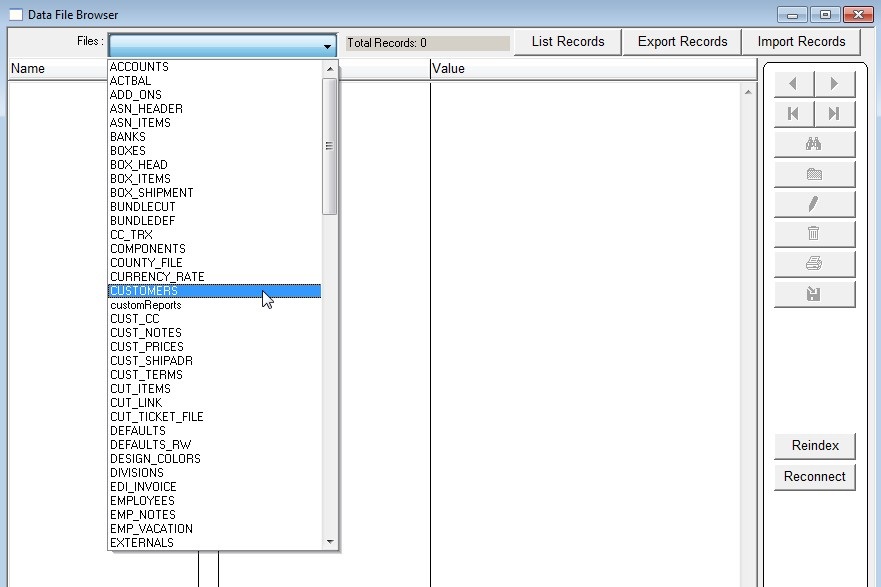
Click the dropdown bar at the top of the window and select the table that you want to investigate.
In this example we’ll look for customer information so we’ll select “Customers”.
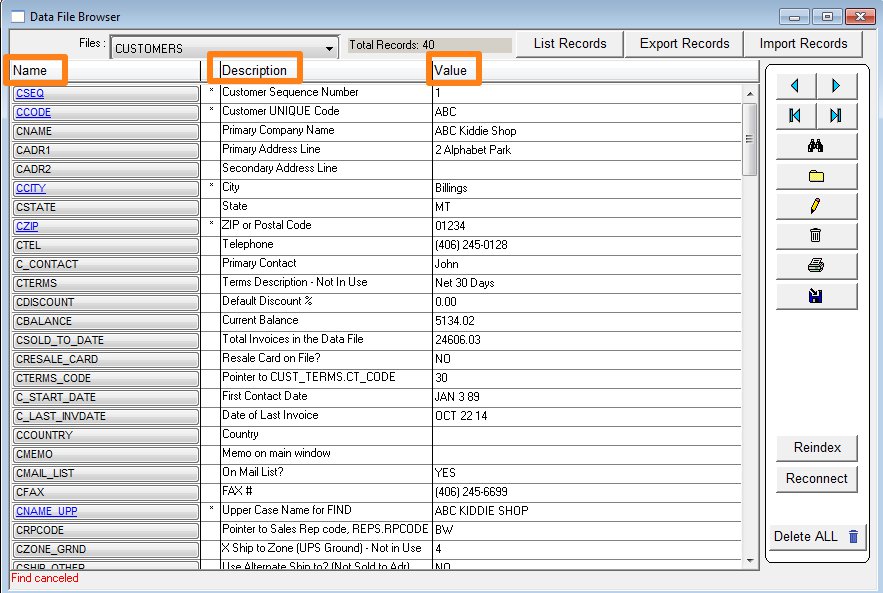
You will then see a list of all the fields within the table (customer data in this example)
The left column is the internal field name used in custom searches.
The description column tells you what the field is used for.
The value column shows you what is entered for this particular record.
NOTE: DO NOT DELETE ANY OF THE RECORDS. Doing so will remove the information from your datafile permanently.
The small (old fashioned) disc icon on the right will export the 3 columns shown on this window.
To make a spreadsheet with a row header and data columns you can open the exported data in Excel.
Copy the first column, then on a blank Excel page, PASTE SPECIAL, and check the TRANSPOSE checkbox.
The Name column will now become the Row Header.
Revised: AG 2/23/17