
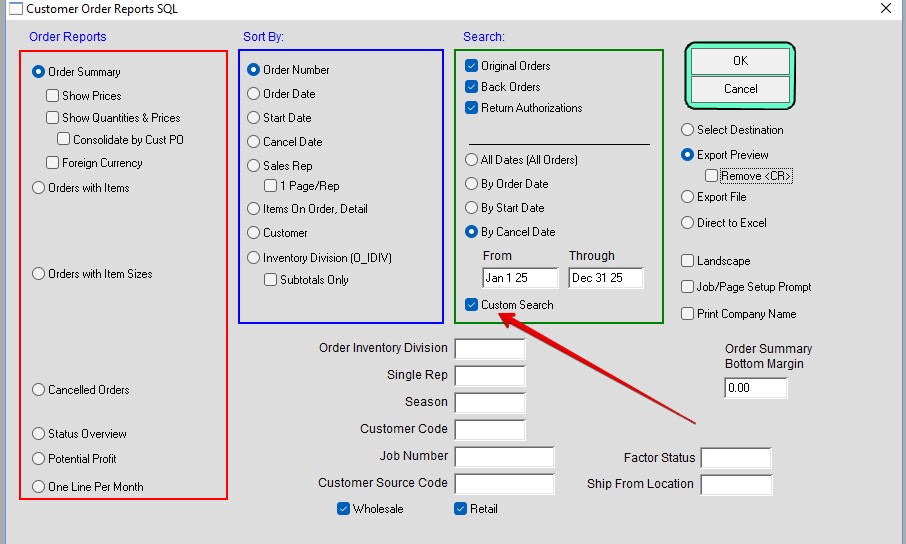
The Custom Search feature in PERFECT FIT allows the user to create “filters” for existing reports that will enable the report to show a restricted range of data. In most cases the report window has a Custom Search button (or checkbox /See Red Arrow).
Click this check box. Then click OK.
Your other search fields will remain valid. In this case Cancel Date Range and Wholesale and Retail Customers.
The Search Class on the left in black are the default ones. The ones in red are custom.
For this user guide I am going to search for any customer order report that has Stock # 200-D.
Note: you can search on any of the files or columns that are listed in the search class.
Click on Inventory.
Note (Green Box):
- New – Use to create a new custom search report
- Duplicate- Change search parameters for report
- Delete- Delete an existing custom search report
Then Click List Field Names
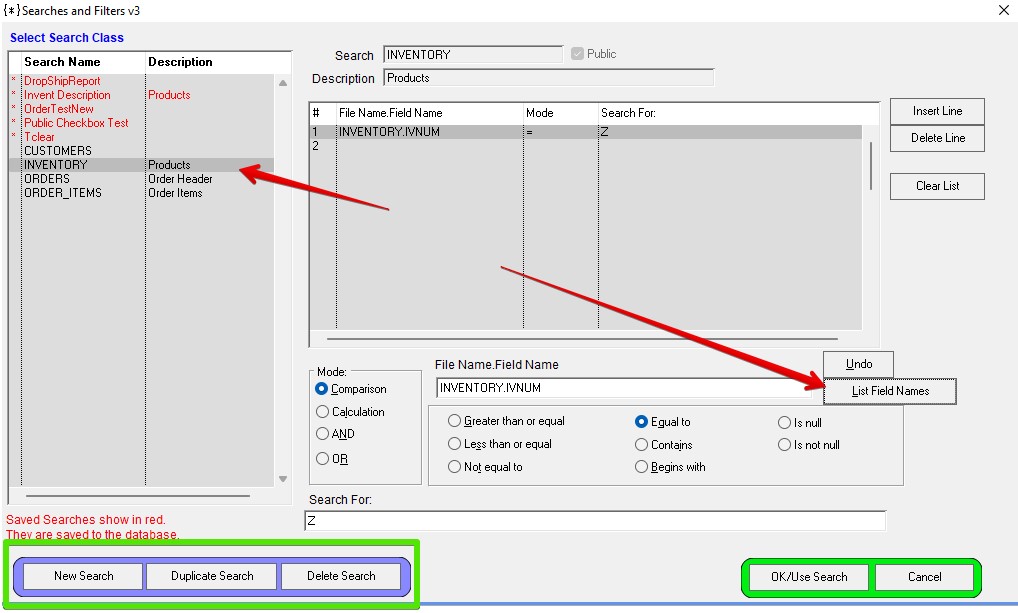
All entry takes place in this lower window. The Mode button should have Comparison selected.
With Line 1 highlighted, tab to the Comparison field.
The left list has the file names used in PF and the right list shows the field names for the highlighted file. Double click to select the field you want in the Comparison box.
Hit Tab to move the cursor to the Mode Operator (eg, Greater than or equal, Equal to, Begins with, etc.). For the example search, click on “Greater than or equal to”. Tab to the Comparison value box and enter “17” . Choose the second line and repeat the process with an order date range.
To run the search and print the report, close the Search Window (starts automatically), select a destination, and the report will print. We recommend you print to screen to confirm that your search operates correctly.The search window does not add fields to a report.
If you search on fields in files that are not used in the report, the search will cause no records to be found. As an example, a customer report can use ANY fields in the customer file, but using a field from the inventory file will cause no customers to be located, and the report will not print.
Revised: 6/1/2026 – AG