
To transfer selected items of inventory from one location to another follow steps 1-3. To transfer all the inventory from one location to another follow steps 1 and 2 then skip to 3a.
1) Menus > Inventory > Commands > Batch Adjustments. In the Inventory Batch Adjustments window press the Transfer button. Then fill in the locations to transfer between in the Move From and
MoveTo fields and select a reason from the Reason dropdown menu.
Import Method
2) You have the option to click the  button. You will be prompted for a CSV or TEXT file. This will allow you to import your stock details from a spreadsheet. Full details to this procedure can be found here.
Alternative Method
2) Press the Load All button and in the Select Inventory To Load prompt, keep Load All selected and press OK (you can choose
Single Season or Custom Search if you want to filter the transfer criteria). You will then see the Stock column populate.
3) Select a line and enter the quantities to transfer in the size slots for the items desired. Then press OK to complete the process.
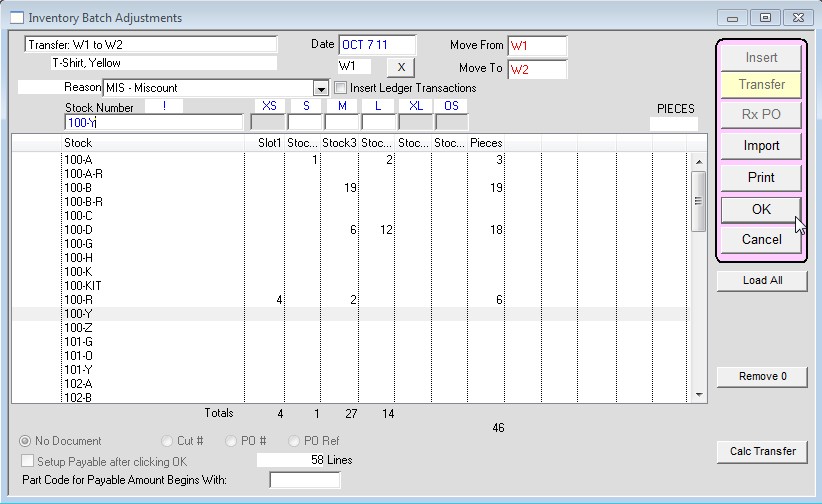
3a) Press the Calc Transfer button and when prompted to move all remaining quantities press Yes. The window will now populate the size slots
with the amount to be transferred.
To finish the process press the OK button.

Last Revision: 8/25/17, GE