
This overview will show you how to create a new Ad Hoc report within PF7. The report with show Customer Codes, Customer Names, and Customer states. Go to:
File > Ad Hoc Reports
AHReports > New
Select the “Columns” template and press Next.
In the Omnis Report Wizard window press the “+” next to PFDATA (do not place a check in the box yet). When you press the “+” a list of fields will appear.
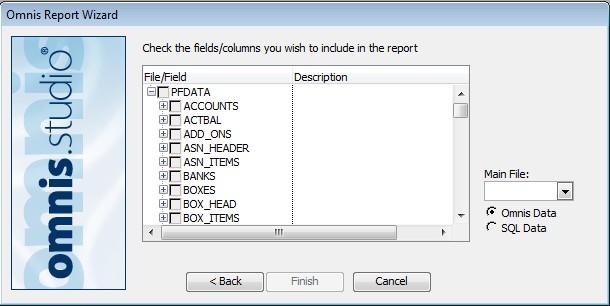
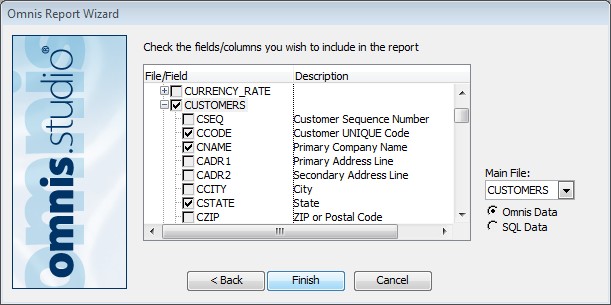
Scroll down until you see CUSTOMERS. Press the “+” next to CUSTOMERS. You will now see a list of all the fields specific to the Customers table. Place a check in the CCODE, CNAME, and CSTATE boxes. Then press Finish
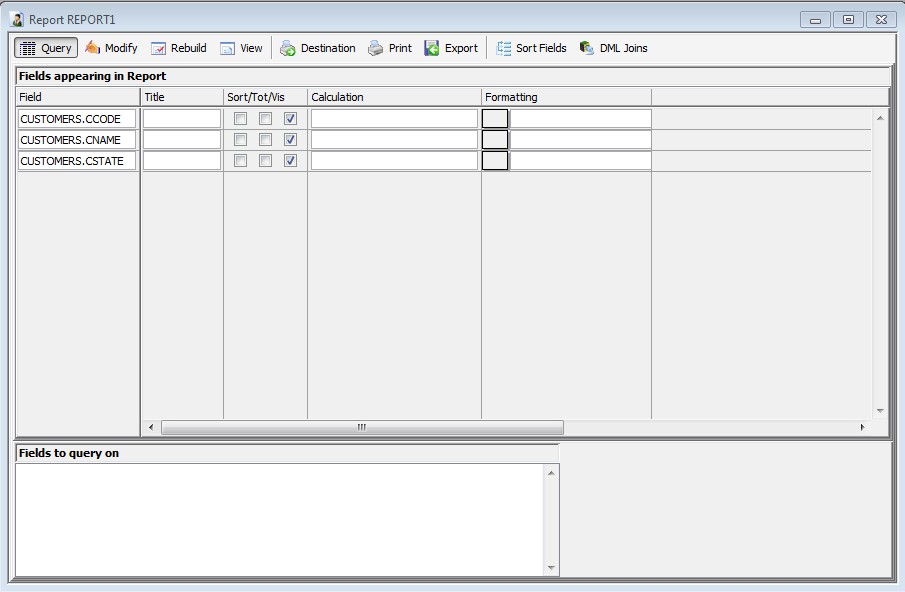
You will then see the following window (note the fields you selected are in the left window pane). The window is currently in Query mode. The Query mode allows you to enter search criteria such as date ranges, specified customer data, etc.. However, for this example we will just print the form without a specific query.
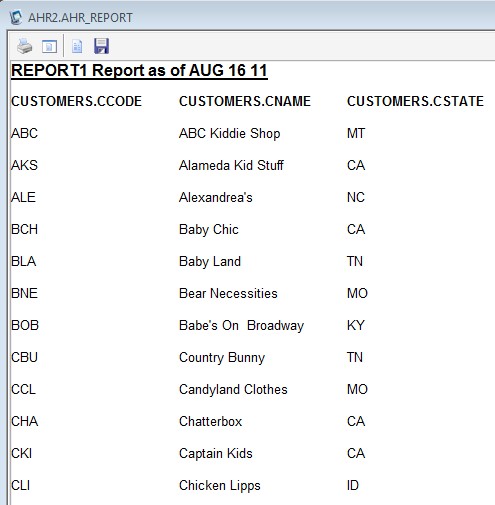
Press the Print icon in the menu bar to print the report. In our example we used CCODE, CNAME, and CSTATE so the report will show a list of all our customer codes, the customer names, and customer states.
End of overview.