
7218: ACCOUNT BALANCE ON A FORMATTING ACCOUNT
Option 1) Try this first:
Menus > Ledger
Ledger > Account Categories
Click Edit
Use the Format dropdown to select :”Line Item”
Click OK.
Option 2) If you’re unable to select “Line Item”, as described in Option 1, do this instead:
View the Account Categories window
Hold down the Ctrl key on your keyboard and use your mouse to left-click the text “Account Number”.
Note: Do not click the actual number. Click the text.
In the Accounts programmers window change the AFORMAT field to “L”.
Go back to the regular Accounts Categories window and the format will now display as “Line Item” and you’ll see several new buttons (detail history, summary, etc)
Go to Detail History > Select “All Transactions” then click OK.
Option 2a) If there aren’t any transactions for the account:
Go back to the Programmers window and click Edit.
Delete the ABAL and change the AFORMAT back to “H”.
Option 2b) If there ARE transactions for the account:
Go back to the Account Categories window and change the Account Number.
Note: The new number must begin with the same number the previous account had. i.e. If it was “1000” you could change it to “1150” but not “2150”.
Enter “Unknown Account” in the account Description field.
Reset the ABAL for the account.
Revised 9/14/2015 SV
Obsolete, the old way:
Left here so you can see the underlying windows that may be affected.
Accounts Diagnosis: Balance on a formatting Account, xxxx.
A Formatting Account can not have a balance.
1. Go to Ledger > Transaction Inspector
2. Find ALL Transactions on the single Account reported on the diagnostics. (example: 1000)
Enter a large date range to include all possible transactions.
Click OK to run the Find.
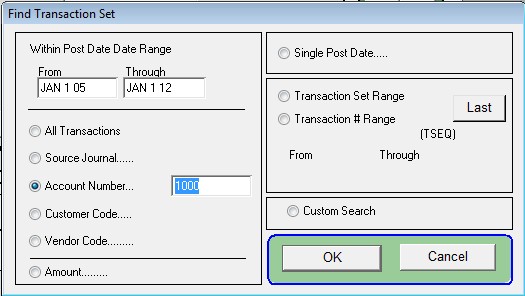
3. In the Transaction list on the right, identify the formating account number as stated in the diagnostic report.
In this example, Account 1000
If the Inspector is showing more than 1 set (the left list), you will need to repeat this and the following steps for every set.
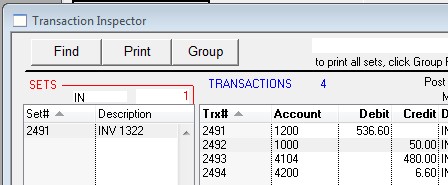
4. Double click the transaction for this account to open the Transaction detail window.
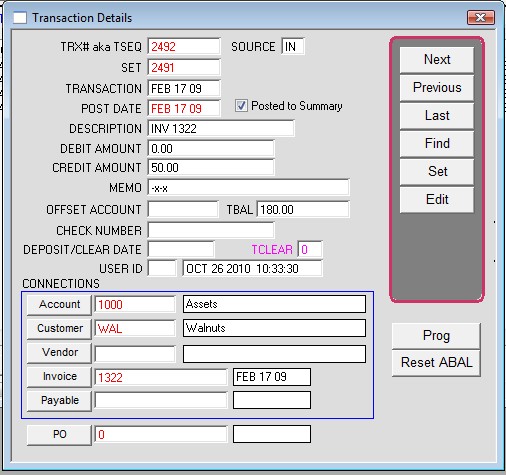
4. Click EDIT.
Change the Account number to a line item account. This will be one of your usual posting accounts.
You will need to understand the transaction set in order to know what account to change it to.
Click OK to save the changes.
5. Repeat this for all the sets shown on the transaction inspector.
6. On the Transaction Details window, click Reset ABAL (Reset Account Balances) for the original account. (1000 in this case)
7. Click Reset ABAL for the new account you entered in step 4.